|
Flash
and Shockwave Games:
To
play our flash or shockwave games, you'll need:
A version 5 or above Internet browser.
A copy of the free Flash 5+ or the Shockwave plug-in: » Download
Flash
A computer with a 300MHz or above processor, otherwise games may
run slowly.
And you need to have "JavaScript" or "Scripting" enabled.
Java
applets and javascipt games:
Java
games are temperamental and may not always work correctly
for all browsers, operating systems and computers. We have tested
our games extensively on most windows operating systems and on
browsers vers. 4+ Nevertheless, it is possible that a game may
not work on your computer due to the software you are using or
the type of computer you have. We appologise for the incovenience,
but it is impossible to make the games playable on all systems.
Things
you need to check:
- You
will need a java-enabled browser to play most of the games on
our site.
- Games
may work better with current browser versions.
- Games
may work better with current operating systems.
- You
may need a java plug-in in some instances to get a game to work.
Click
here to download the latest plug-in. ***
Warning - some java games may not work properly or may not work
at all after the plug-in is installed. To disable the plug-in
read below. ***
Java
plug-in problems
You
may find that once you install the java plug-in some java games
that worked fine previously do not work very well anymore.
To
correct this problem you can DISABLE the java plug-in
and return
to the default java console that comes with Internet Explorer. Follow the following
three steps or use the alternative fix to eliminate all java-plugin
interaction with your browser..
Step
1.
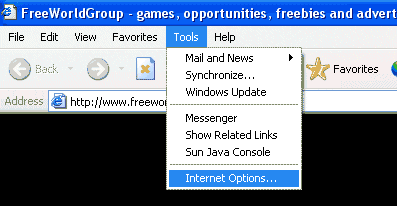
Click on the tools menu and select Internet Options.
Step
2.
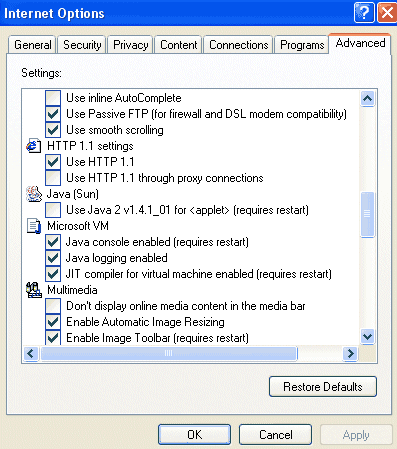
Click on the 'Advanced' tab. Scroll down the Advanced tab window
until you reach the Java (Sun) section (half-way down). De-select
the box underneath Java (Sun). Re-select 'Java console...' and
'Java logging...' underneath the 'Microsoft VM' section.
Step
3.
Close Internet Explorer and open it again. The java games should
work as they did before you installed the plug-in. You can re-activate
the java plug-in at any time for games that require it.
---------------------------------------- ALTERNATIVE FIX:
If your browser continues to freeze or play up when java applets
are being used, try the following:
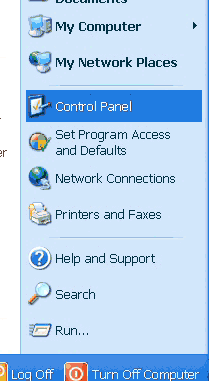
Step 1. Go into your computers control panel (either from the
start menu or by double clicking on 'my computer' on the desktop and selecting
'control panel' from the new window.
Step 2. Once in control panel, switch to classic view (for Win
XP users) and look through the list of components until you find Java Plug-in.
Double click on the Java Plug-in icon. 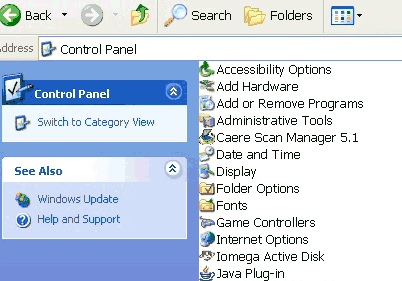
Step 3. Once the Java Plug-in window has opened, select the 'Browser' tab
and deselect the plug-in's association with your browser(s) and then hit apply.
This should correct any problems associated with the plug-in. 
Return
to top
Close
Window
|
